You have the plugin installed. You need two API keys and one shortcode, and your site will be running a live local business scanner. Here is the exact sequence, in order, with no unnecessary context.
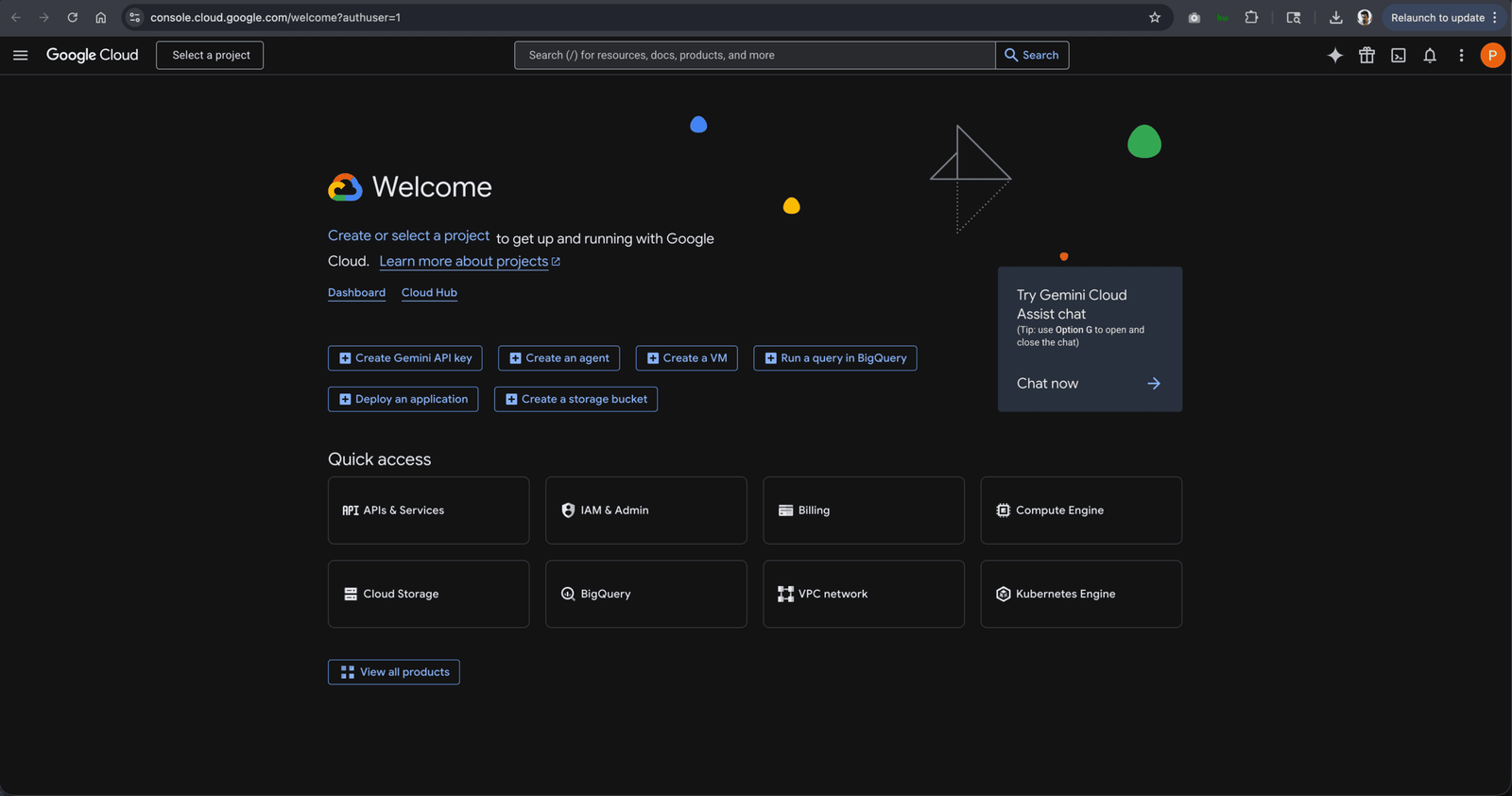
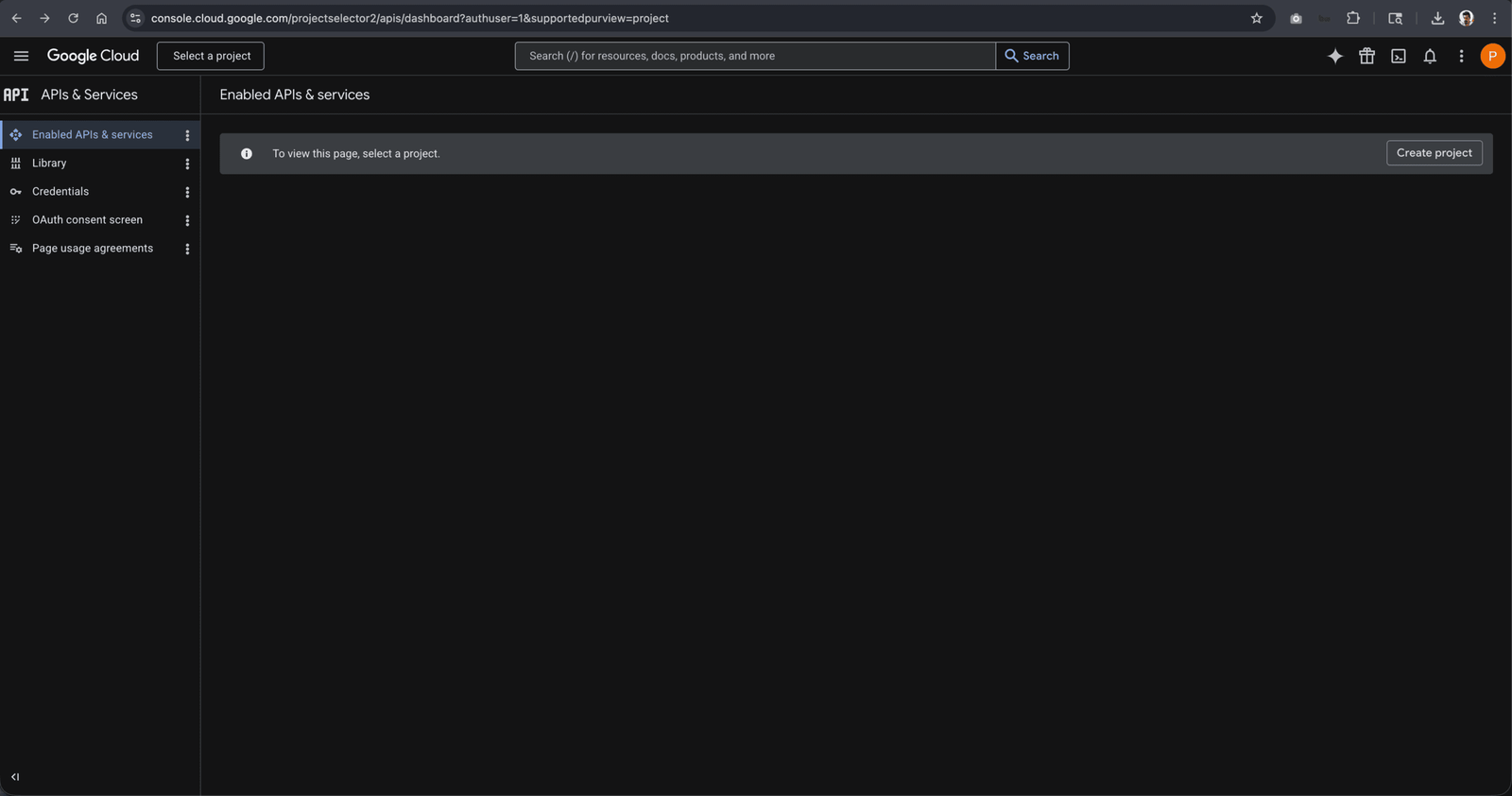
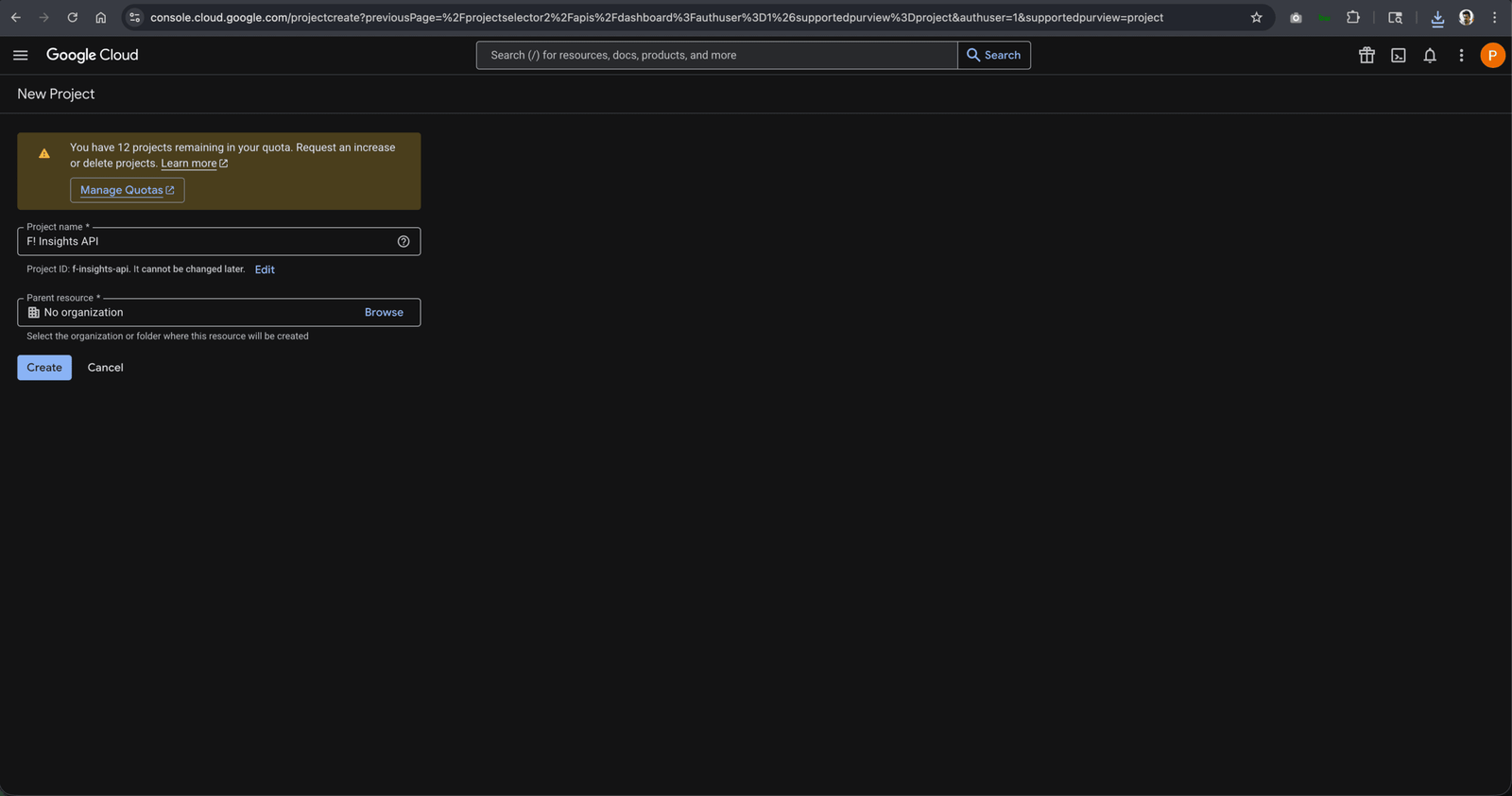
Step 1: Get Your Google Places API Key
- Go to console.cloud.google.com. Sign in with your Google account or create one.
- Click Create Project. Name it anything: “Agency Scanner,” “Local Audit,” etc.
- In the left sidebar: APIs and Services, then Library.
- Search Places API (New). Click it. Click Enable.
- Go back to APIs and Services, then Credentials.
- Click Create Credentials, select API Key.
- Copy the key. Store it somewhere accessible.
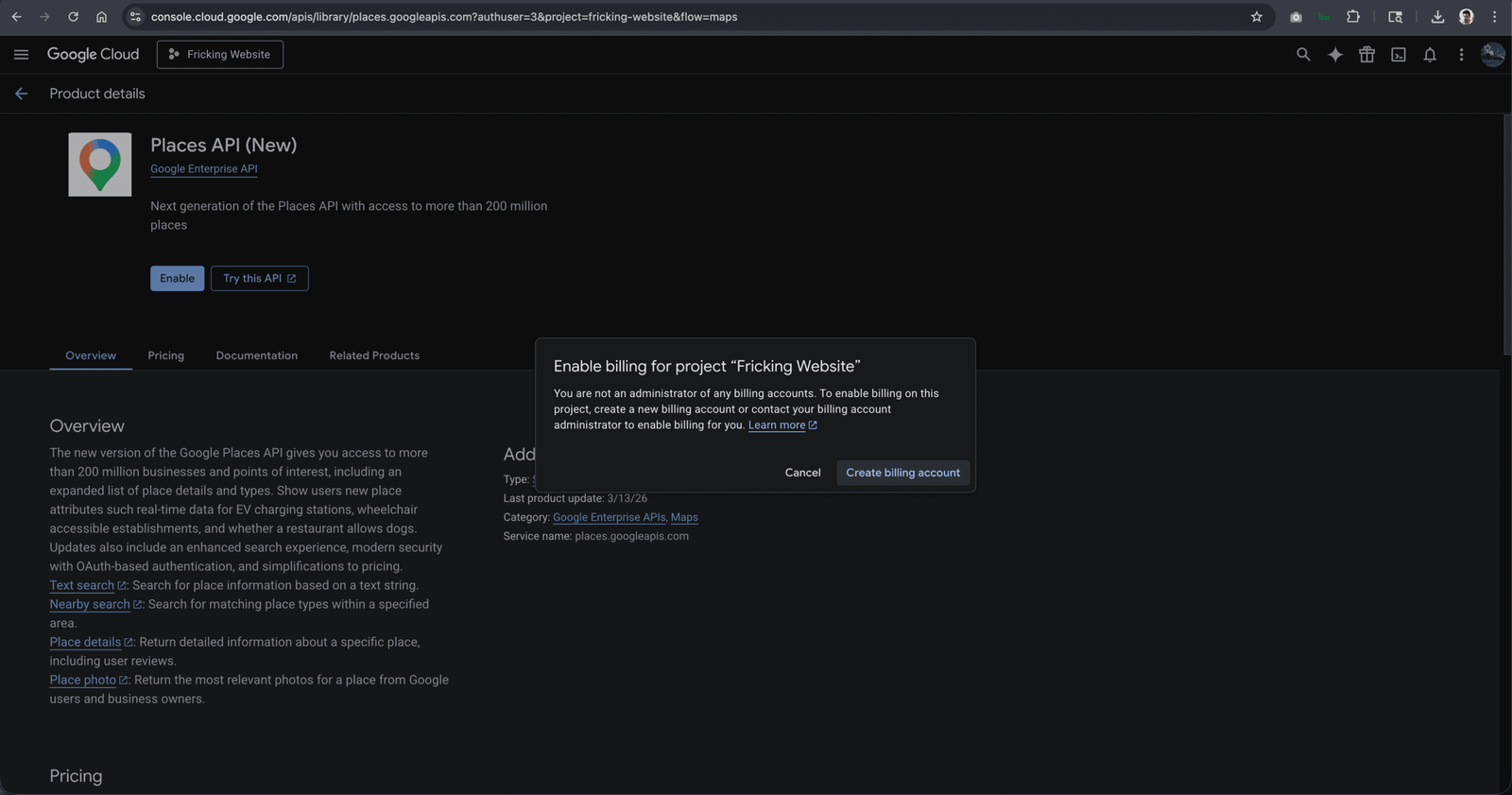
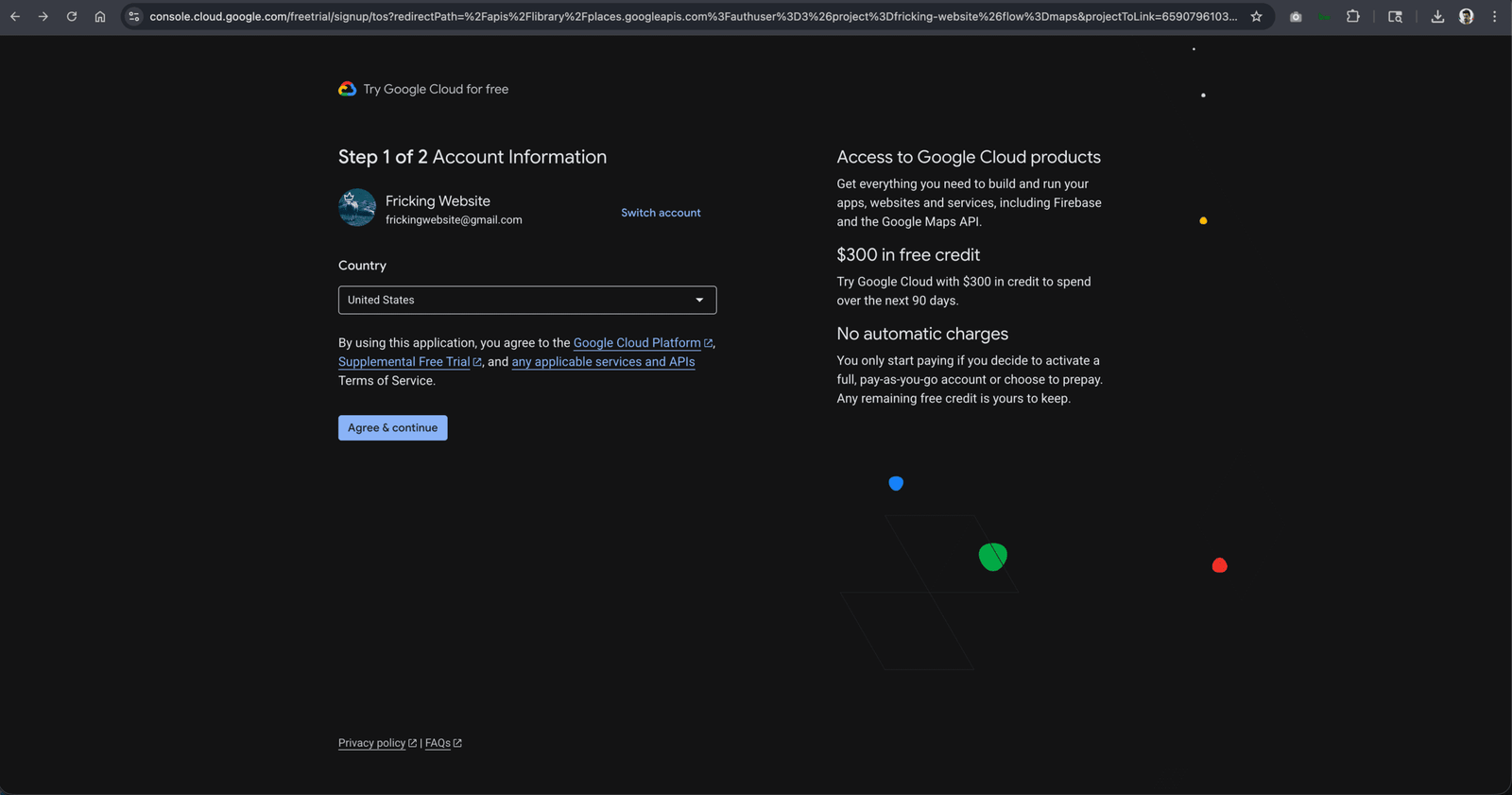
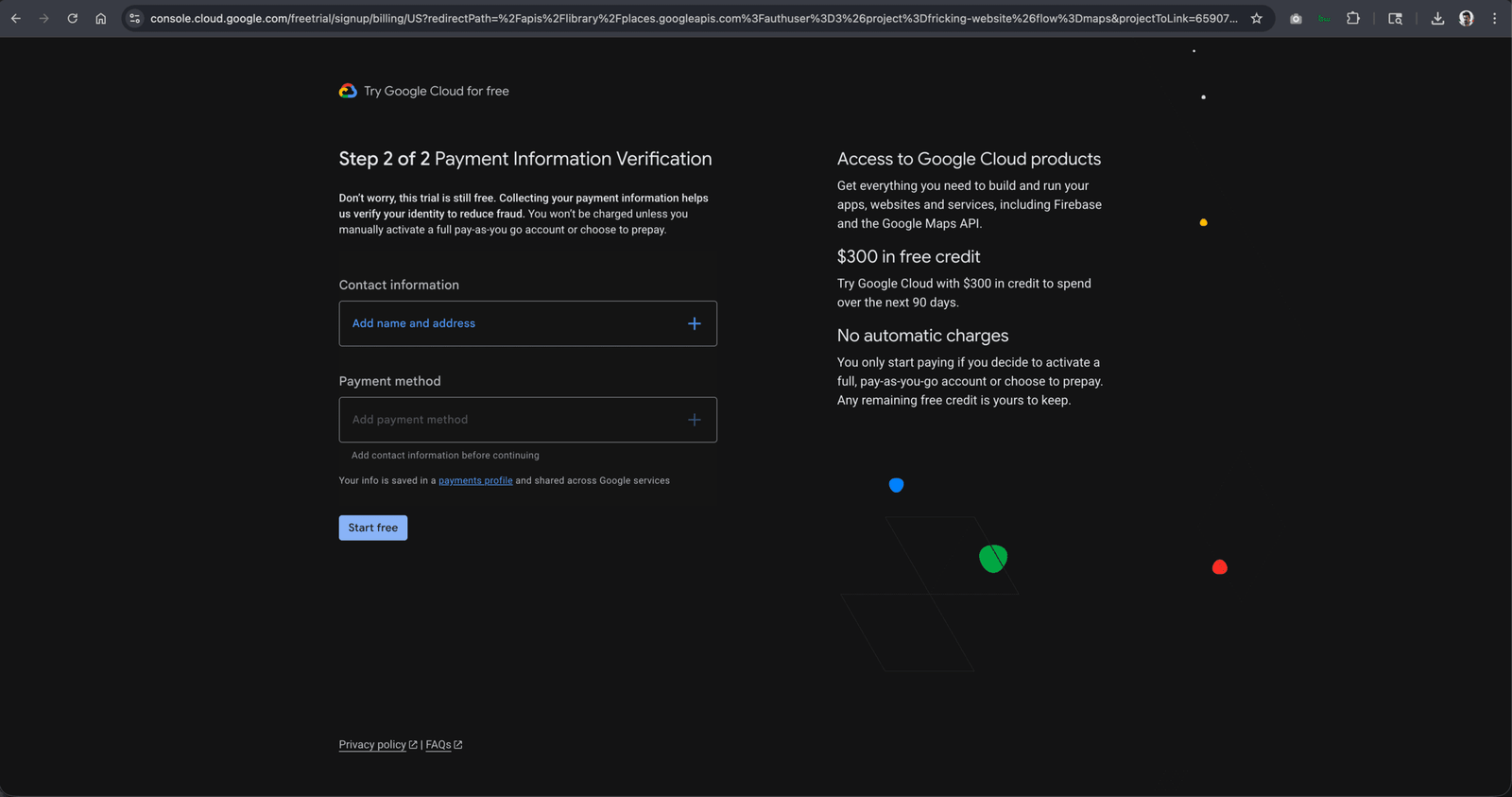
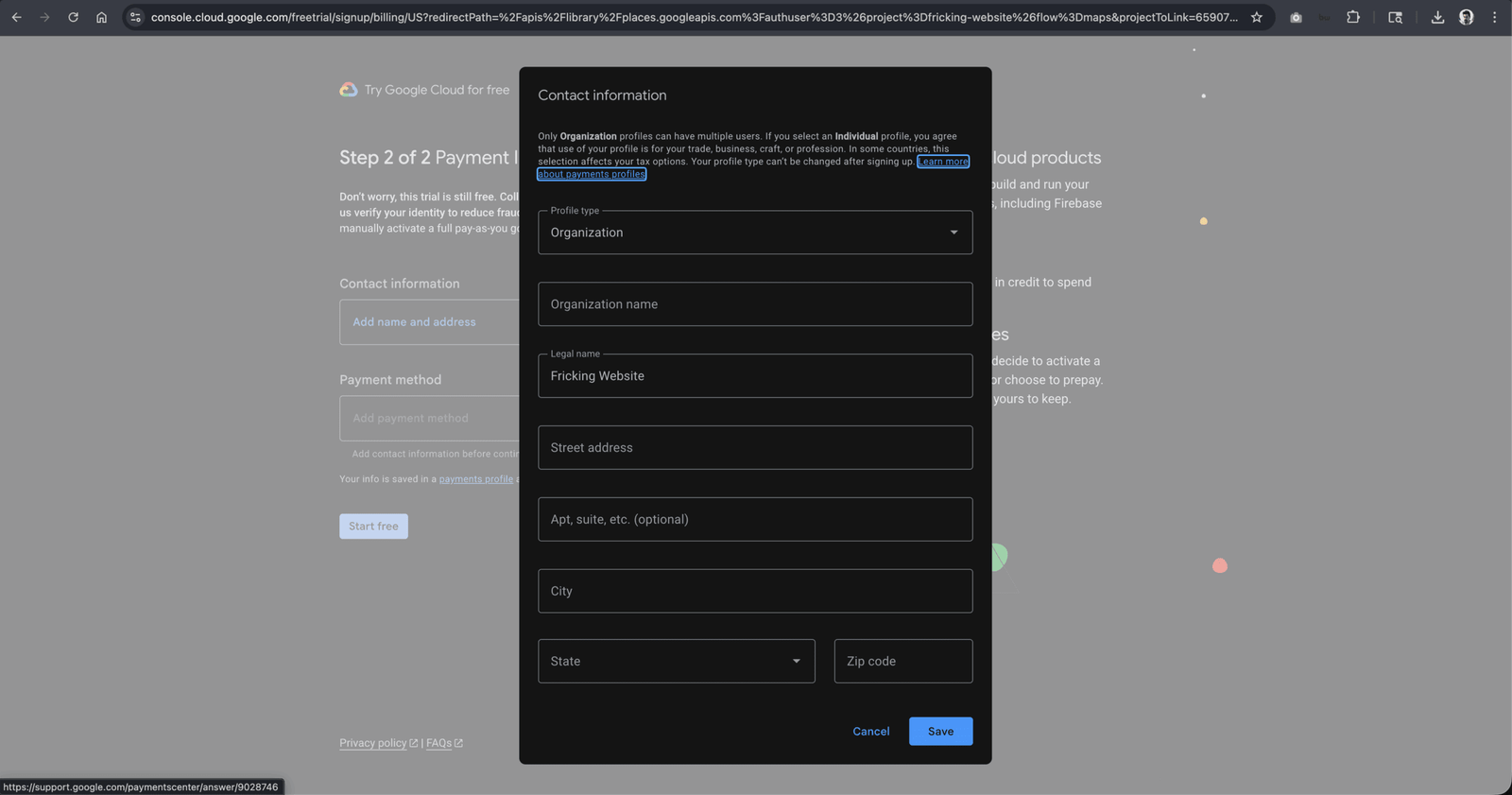
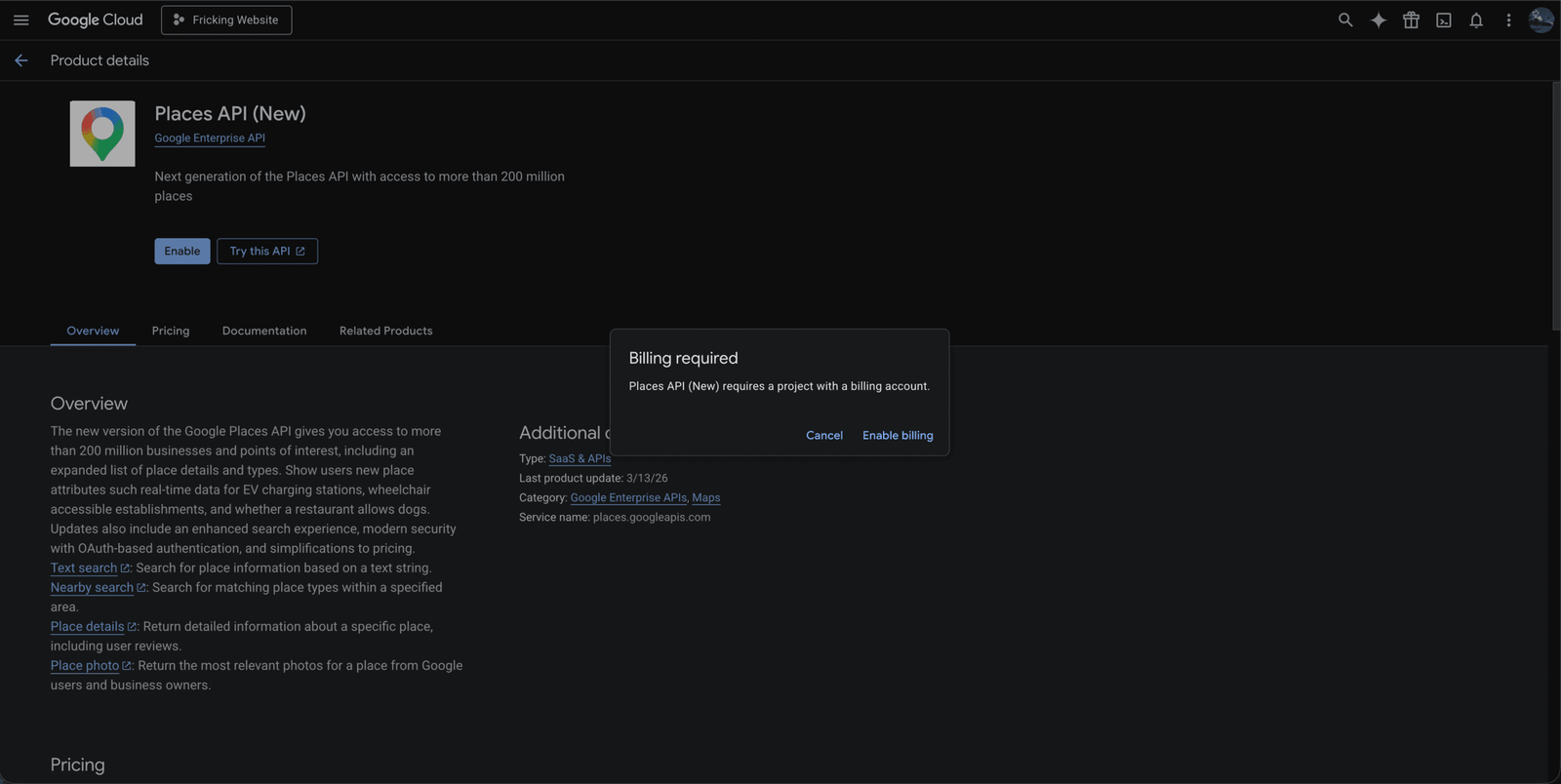
Note: New Google Cloud accounts receive $200 in free monthly credit automatically. For typical agency scanning volumes, this covers your usage entirely for the first several months.
Step 2: Get Your Anthropic API Key
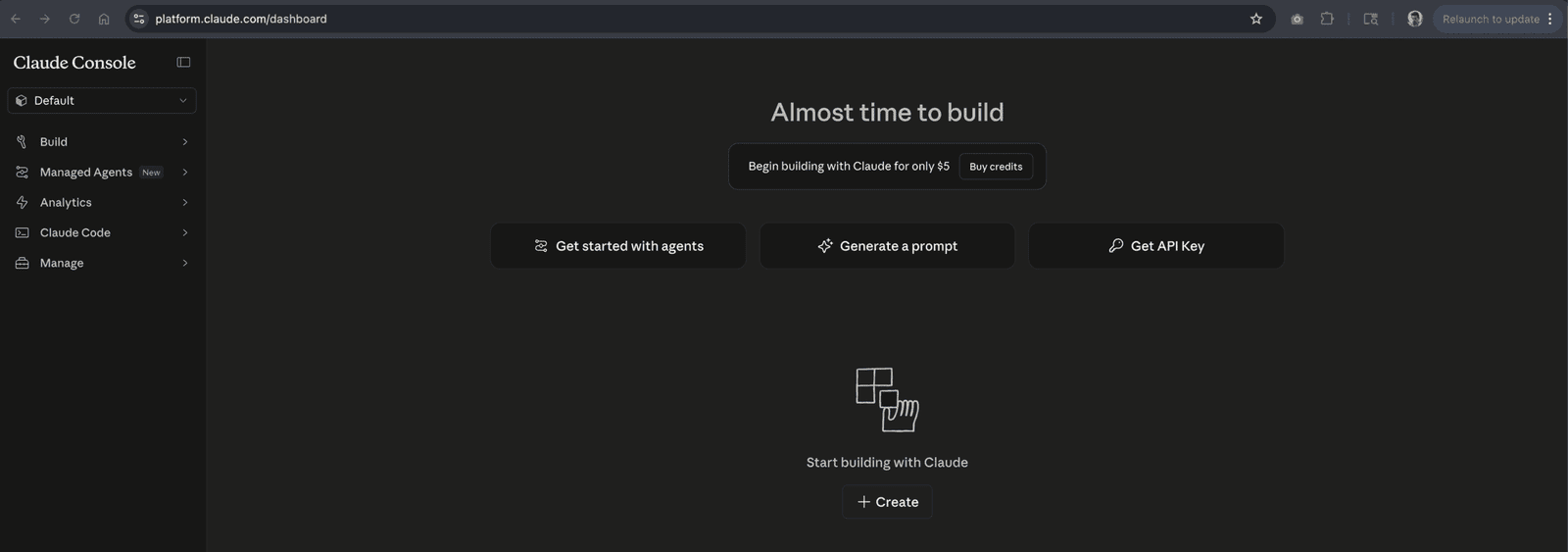
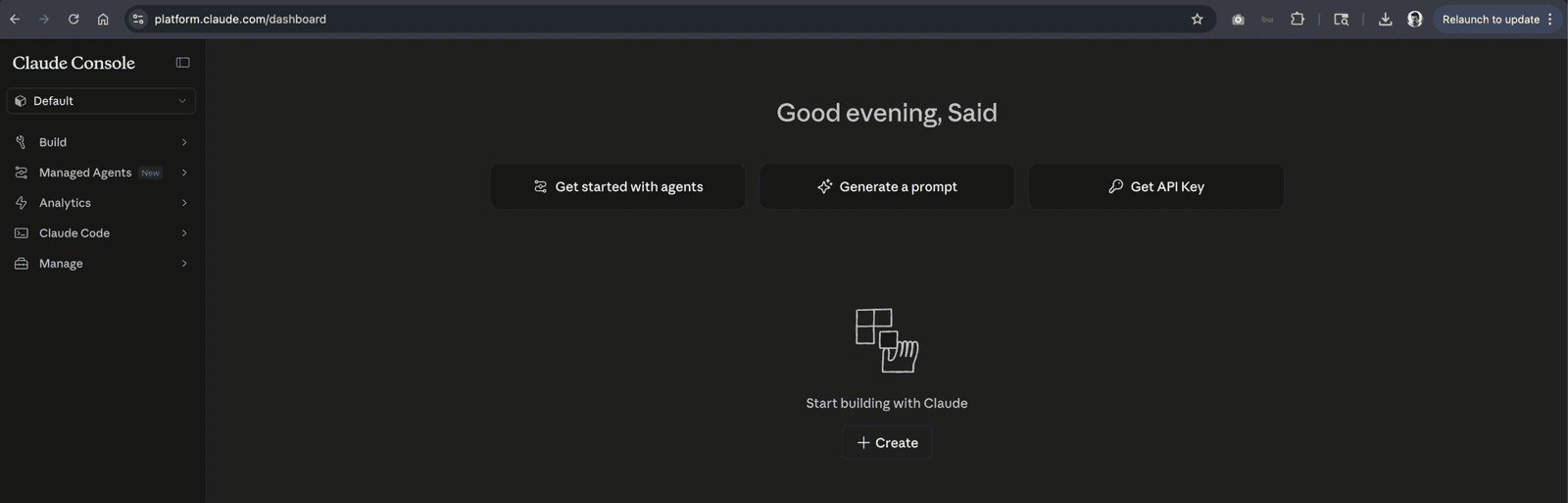
- Go to console.anthropic.com or platform.claude.com for returning users. Create an account or sign in.
- Go to Billing in the left sidebar. Add a payment method and add a small credit amount (minimum $5). Anthropic requires this before issuing API keys.
- Go to API Keys in the left sidebar.
- Click Create Key. Name it (e.g., “F! Insights”).
- Copy the key immediately. Anthropic shows the full key only once at creation. If you miss it, you will need to create a new one.
Step 3: Enter Both Keys in Plugin Settings
- In your WordPress admin, go to the F! Insights settings panel (it will appear in your left admin sidebar after activation).
- Paste your Google Places API key into the Google API field.
- Paste your Anthropic API key into the Anthropic API field.
- Select your preferred AI model. Claude Haiku is recommended for most use cases: fastest response, lowest cost per scan, output quality is excellent for the 8-category report format.
- Set your scan radius for competitor detection (2 to 5 miles works for most markets; increase for rural areas).
- Click Save. The plugin will validate both keys on save and display a confirmation if the connections are working.
Step 4: Add the Shortcode to a Page
- Create a new WordPress page (or use an existing one).
- Add a clear headline: “Free Local Business Audit” or “See How Your Google Profile Compares to Your Competitors” works well.
- Add the plugin shortcode to the page body. The exact shortcode is shown in your plugin settings panel.
- Publish the page.
The scanner is now live. Any visitor can enter a business name and city and receive a full scored report within 60 to 90 seconds.
For how to set up the page for maximum conversion and which placement on your site drives the most scan traffic, see How to Add a Free SEO Audit Tool to Your WordPress Site.
Step 5: Run Your First Scan
Enter a local business you know well: a business you have been thinking about prospecting, a client’s competitor, or a business in your own neighborhood. Enter their name and city. Wait 60 to 90 seconds.
What the report should show you:
- An overall composite score and 8-category breakdown
- The business’s review count and star rating, compared to the nearest named competitors
- GBP completeness gaps: specific missing fields and categories
- Mobile PageSpeed score with a plain-language explanation
- Prioritized recommendations based on where the gaps are largest
If the output looks accurate and the competitor comparison reflects businesses you recognize, the setup is working correctly. If something looks off (wrong location, no competitors returned, error messages), see the troubleshooting section below.
What the API Usage Costs
| Usage Level | Google API Cost | Anthropic API Cost (Haiku) | Combined Per Scan |
|---|---|---|---|
| Per scan (typical) | $0.01 to $0.03 | $0.01 to $0.03 | $0.02 to $0.05 |
| 100 scans per month | $1 to $3 | $1 to $3 | $2 to $6 total |
| 500 scans per month | $5 to $15 | $5 to $15 | $10 to $30 total |
You pay Google and Anthropic directly at their published rates. There is no markup, no monthly platform fee, and no per-seat charge. You can set monthly spend limits in both the Google Cloud console and the Anthropic console to cap your costs if needed.
Quick Troubleshooting
| Problem | Most Likely Cause | Fix |
|---|---|---|
| Scanner shows “API key invalid” on save | Key was copied with a trailing space or was not fully copied | Go back to the API console, copy the key again carefully, re-paste |
| Business not found for a search | Business name or city does not match Google’s record exactly | Try adding the street address in the search; use the business name exactly as it appears on Google Maps |
| No competitors returned in the report | Scan radius is set too small for the area, or the category has low local density | Increase the scan radius in settings; try 5 miles or more for suburban or rural markets |
| AI analysis section is blank | Anthropic API key is invalid or account has insufficient credit | Check the Anthropic console for key validity and credit balance; add credit if below $1 |
| PageSpeed section missing from report | The business does not have a website listed on their GBP | This is expected; the section only populates when a website URL is present in the GBP data |
If you are running into issues not covered here, the most useful diagnostic is checking your WordPress error log (via your hosting panel) and the API consoles for both Google and Anthropic, which will show exactly what request was made and what error was returned. Most setup issues are resolved within a few minutes of reading the actual error message rather than the symptom.