How to Audit a Google Business Profile to Rank #1.

Most local businesses have a Google Business Profile. Very few of them have one that’s actually working.

The difference between a GBP that sits at position 7 in the map pack and one that sits at position 1 almost always comes down to the same three things: the profile is incomplete, the website doesn’t support it with matching content, and the business isn’t generating reviews consistently enough to build momentum.

This guide walks you through a complete GBP audit. It covers every layer of your profile, your website, and your content strategy. At each step, you’ll find a copy/paste prompt you can drop into any AI model to do the heavy lifting.

You don’t need to be a local SEO expert to follow this. You need a Google Business Profile, about two hours, and the prompts below.

What You’re Actually Auditing

Before you touch anything, it helps to understand what Google is actually measuring. The local ranking algorithm weighs three things:

Relevance is how well your profile matches what someone searched for. If someone types “emergency plumber Austin” and your profile says “Joe’s Home Services” with no mention of emergency plumbing, you’re starting at a disadvantage before Google even checks anything else.

Distance is how close your physical location is to the person searching. You can’t move your business, but you can expand your effective radius by building signals around your service area.

Prominence is how well-known Google thinks you are online. This comes from reviews, mentions on other websites, backlinks, and the overall weight of your digital presence.

Of these three, relevance and prominence are the ones you control. This audit helps you optimize both.

Step 1: Audit Your GBP Categories

Your primary category is the single most important field in your Google Business Profile. It tells Google what type of business you are. Get it wrong and you’ll rank for the wrong things, or nothing at all.

What to Check

  • Log into your GBP and look at your primary category.
  • Ask yourself: does this match the exact phrase someone would type into Google when they need my main service?
  • Look at your top 2 to 3 competitors in the map pack. What is their primary category?

Google has thousands of categories and they update them regularly. Businesses often pick a broad category like “Contractor” when a more specific one like “Roofing Contractor” exists. The specific category almost always outperforms the broad one because it matches narrower, higher-intent searches.

Secondary categories let you tell Google about your other services. Most businesses use zero to two. The map pack leaders in competitive niches often use six to nine.

Prompt 1: Category Research

Copy this prompt and paste it into any AI model. Replace the bracketed fields with your real information.

Prompt 1 Category research

Step 2: Build Your Services List

The services section of your GBP is where most businesses leave the most ranking power on the table. Google uses the services you list to match your profile to specific search queries. If you don’t list “water heater installation” as a service, you’re far less likely to show up when someone searches for it.

Google allows up to 30 services per business. Most businesses list four or five. The businesses ranking at the top of the map pack tend to have 15 to 30 specific services listed, each with its own name and description.

The goal is specificity. Don’t list “Plumbing.” List “Water Heater Installation,” “Emergency Pipe Repair,” “Sewer Line Replacement,” “Garbage Disposal Installation,” and every other specific thing you do.

Prompt 2: GBP Services Generator

Once you have your services list, you need to organize it. Google groups your services under your categories, and this grouping affects how Google’s algorithm connects your profile to specific searches. The mapping matters.

Prompt 2 GBP services generator

Prompt 3: Category-to-Service Mapping

Prompt 3 Category-to-service mapping

Step 3: Optimize Your Business Description

Your GBP description has a 750-character limit. Most businesses write something generic, like “We are a family-owned plumbing company serving Austin for over 20 years. We offer quality service at affordable prices.”

That description does almost nothing for you. It has no specific service names, no local keywords, no reason for Google to connect your profile to a specific search query.

A well-optimized description does three things: it names your most important services using the exact language people search for, it mentions your city and service area, and it gives a real reason why someone would choose you over a competitor.

What to Check

  • Does your description mention your primary service in the first sentence?
  • Does it name at least 4 to 6 specific services you offer?
  • Does it include your city name?
  • Is it close to 750 characters? (You have the space. Use it.)

Prompt 4: GBP Description Optimizer

Prompt 4 GBP description optimizer

Step 4: Audit Your Q&A Section

The Q&A section of your GBP is one of the most neglected features in local SEO. Anyone can ask a question, and anyone can answer it. If you’re not seeding your own Q&A with the questions your customers actually ask, you’re missing a content opportunity Google actively reads.

Google pulls Q&A content when generating AI Overviews and local search summaries. A well-populated Q&A section gives you additional real estate in the search results and signals to Google that your business is actively managed.

What to Check

  • Go to your GBP listing and click on the Q&A section.
  • Count how many questions are there.
  • Check if you’ve answered all of them.
  • Look at whether any of the questions mention your city or specific services.

Most businesses have zero to two questions. Aim for ten or more. The best questions are ones that include local intent (“Do you serve the [neighborhood] area?”) and service-specific intent (“Do you handle [specific service]?”).

Prompt 5: Q&A Generator

Prompt 5 Q&A generator

Step 5: Audit Your Photos

Google says businesses with photos receive 42% more requests for directions and 35% more clicks through to their website. More importantly, Google’s algorithm uses photo activity as a freshness and activity signal: how often photos are added, how many you have, and what types they are.

What to Check

  • Log into GBP and count your total photos.
  • Note when the most recent photo was added.
  • Check if you have these specific types: exterior, interior, team/staff, work in progress, completed work, and equipment.

Minimum Photo Benchmarks by Business Type

  • Service businesses (plumber, HVAC, roofer, electrician): 20+ photos minimum, ideally 50+
  • Retail or food: 40+ photos minimum
  • Professional services (lawyer, accountant, dentist): 15+ photos minimum

If your most recent photo is more than 30 days old, Google’s algorithm registers lower activity than a competitor who uploads weekly.

Prompt 6: Photo Strategy Planner

Prompt 6 Photo strategy planner

Step 6: Build Your Service Area Pages

This is the step that separates businesses that dominate local search from ones that just show up occasionally.

Google doesn’t just rank your GBP in isolation. It cross-references your profile with your website. If your GBP says you offer 20 services but your website only has a generic homepage with no dedicated pages for those services, Google has less confidence that you’re a strong match for specific searches.

The strategy is to create one dedicated page on your website for each of your major GBP service categories. These pages become the web content that supports each GBP category, strengthening the semantic relationship Google uses to determine what searches your profile should appear for.

GBP allows up to 30 services per category and up to 10 categories. The businesses ranking at #1 in competitive markets often have 10 to 30 website pages that each correspond to a specific GBP service or category.

Why this works: When someone searches “roof repair Austin,” Google checks whether the top GBP candidates have website content specifically about roof repair in Austin. The one that does has a significant ranking advantage over the one that just has a homepage saying “we do roofing.”

Prompt 7: Service Page Content Generator

Use this prompt for each service category page you want to create.

Prompt 7 Service page content generator

Step 7: Build a Review Acquisition System

Reviews are the single highest-impact ranking factor for Google Maps. Not just the star rating. The volume of reviews, the recency of reviews, and whether the business responds to them all factor into the algorithm.

A business with 200 reviews at 4.6 stars almost always outranks a business with 40 reviews at 4.9 stars in a competitive market. Volume matters more than perfection.

What to Check

  • How many reviews do you have total?
  • What’s your average rating?
  • When was your most recent review?
  • What do your top 2 competitors have?
  • Are you responding to all reviews, including negative ones?

The gap between you and your closest competitor’s review count is the number you need to close. Divide it by three months. That’s your monthly review acquisition target.

Prompt 8: Review Response Templates

Prompt 8 Review response templates

Prompt 9: Review Request Email/Text Template

Prompt 9 Review request email/text

Step 8: Run a Competitor Gap Analysis

The fastest way to find what’s holding your ranking back is to look at what the #1 ranking business has that you don’t.

What to Check

  • Open an incognito browser window.
  • Search for your primary service plus your city.
  • Look at the top 3 results in the map pack.
  • For each one, note: total reviews, star rating, number of photos, number of GBP categories, and whether they have a dedicated website page for the service you searched for.

The gaps you find in this comparison are your ranking roadmap. Every element the #1 result has that you don’t is a task to add to your list.

Prompt 10: Competitor Gap Analysis


Prompt 10 Competitor gap analysis

Using F! Insights to Automate the Heavy Lifting

The audit steps above are things you can do manually. But most of them require pulling data, running it through an AI model, interpreting the output, and then figuring out what to do next. That process takes time, and time is the reason most businesses never complete an audit even after they start one.

F! Insights is a WordPress plugin that automates the data-gathering portion of this audit. A business owner types their name into a scanner on your website, and within about 30 seconds they get a scored report covering eight categories: online presence, customer reviews, photos and media, business information, competitive position, website performance, local SEO signals, and page speed.

It doesn’t replace the strategy work. But it does the part that usually stops people before they start; it pulls the data and shows the gaps in plain language, which makes it a lot easier to have a conversation about what needs to change and why.

If you’re an agency or consultant running these audits for clients, F! Insights can handle the initial audit and lead capture automatically, so you can spend your time on the strategy and content work that actually moves rankings.

The Ranking Checklist

Here’s every item from this audit in one place. Check off each item as you complete it.

GBP Profile

  • Primary category reviewed and confirmed as best available option
  • Up to 9 secondary categories added
  • 15 to 30 specific services listed with descriptions
  • Services mapped to categories for strongest semantic alignment
  • Business description optimized to 750 characters with service keywords and city
  • 10+ Q&A pairs seeded and answered
  • Photos: 20+ for service businesses, updated within the last 30 days
  • Weekly photo upload scheduled and on calendar

Website

  • One dedicated page created for each primary GBP service category
  • Each page includes the corresponding GBP services as H2 headings
  • Each page targets the specific service plus city keyword
  • Schema markup (LocalBusiness + Service JSON-LD) added to each page
  • Internal links between service pages established

Reviews

  • Current review count and competitor gap documented
  • Monthly review acquisition target set
  • Review request email and text templates ready to use
  • Response templates ready for all review types
  • All existing reviews have responses

Ongoing

  • Competitor gap analysis documented with specific actions
  • Monthly rescan scheduled to track progress
  • GBP post published at least twice per month

A Note on the Content These Prompts Generate

The prompts in this guide are designed to produce content that works for both traditional Google search rankings and AI-powered search features like Google’s AI Overview. Those two systems have different preferences.

Traditional Google rewards comprehensive, keyword-optimized content with proper heading structure, keyword density, and technical signals like schema markup.

AI systems like Google’s AI Overview and Claude reward authentic, conversational content that sounds like it came from a trusted local expert, not a marketing agency. They look for content that answers real questions in natural language.

The writing guidelines built into these prompts try to hit both targets at once. Start each section in natural conversational language, then layer in the specific keyword and technical content. That pattern tends to satisfy both ranking systems better than content optimized purely for one or the other.

The one thing both systems agree on: vague, generic content doesn’t rank. Specific, locally grounded, service-specific content does.


How to Use Auto Replies on Instagram Messenger

How to Use Auto Replies on Instagram Messenger

Auto replies on Instagram are not a customer service shortcut. When they are set up thoughtfully, they are the first move in a real conversation. When they are generic, they tell the person they messaged a wall. Here is how to do it right.

Before You Start: What You Need

  • An Instagram Professional Account (creator or business)
  • A Facebook Page connected to your Instagram account
  • Access to Meta Business Suite at business.facebook.com
If your account is still personal, go to Settings → Account → Switch to Professional Account first. The whole process takes under two minutes.

The Three Auto Replies Worth Setting Up

Instagram offers three types of automated responses. Each one serves a different moment in the conversation.
Type When it fires What it should do
Instant Reply First message from a new contact Acknowledge, set expectations, give a useful next step
FAQ Quick Replies When a keyword matches a common question Answer the actual question, not redirect to a website
Away Message During hours you define as offline State when you will be back with a specific time, not “soon”

How to Set Them Up

Step 1: Connect to Meta Business Suite

Go to business.facebook.com. Link your Instagram account to a Facebook Page if you have not already. This unlocks the full messaging automation panel.

Step 2: Open Automated Responses

In the left menu, go to Inbox → Automated Responses. You will see all three reply types listed here.

Step 3: Configure Each Reply Type

Instant Reply

  1. Toggle Instant Reply on
  2. Write a message that acknowledges the contact and tells them what happens next
  3. Save

FAQ Quick Replies

  1. Select Frequently Asked Questions
  2. Add each question your inbox actually gets: pricing, how to book, your location, turnaround times
  3. Write a real answer for each one. Not “check our website.” An actual answer.
  4. Save each entry individually

Away Message

  1. Toggle Away Message on
  2. Set the specific hours you are unavailable
  3. Write a message with a concrete return time: “I am offline until Monday morning. You will hear from me before noon.”
  4. Save

Step 4: Test Everything

Send a message to your account from a second Instagram profile. Confirm each auto reply fires the way you expect before you assume it is working.

What Makes the Message Actually Work

Weak Better
“Thanks for your message! We’ll be in touch soon!” “Got your message. I will respond within 3 hours during business hours.”
“For pricing, please visit our website.” “Projects start at $X. Send me a few details and I can give you a specific number.”
“We’re currently away. We’ll respond ASAP.” “Offline until Tuesday. You’ll hear from me before 10 AM.”

When to Use a Third-Party Tool Instead

  • ManyChat: Branching conversations, keyword triggers, CRM integration. Best free-tier option for anything beyond static replies.
  • Tidio: Good for teams managing multiple social inboxes in one place.
For most local businesses and small agencies, the native Meta tools are enough. Add complexity only when you have hit a specific limitation.

Maintenance

Review your auto replies quarterly. FAQs change when services change. A reply pointing to old pricing or a dead booking link does more damage than no reply at all.
F! Insights Setup: Google & Anthropic API Keys in 15 Minutes

F! Insights Setup: Google & Anthropic API Keys in 15 Minutes

You have the plugin installed. You need two API keys and one shortcode, and your site will be running a live local business scanner. Here is the exact sequence, in order, with no unnecessary context.

Step 1: Get Your Google Places API Key

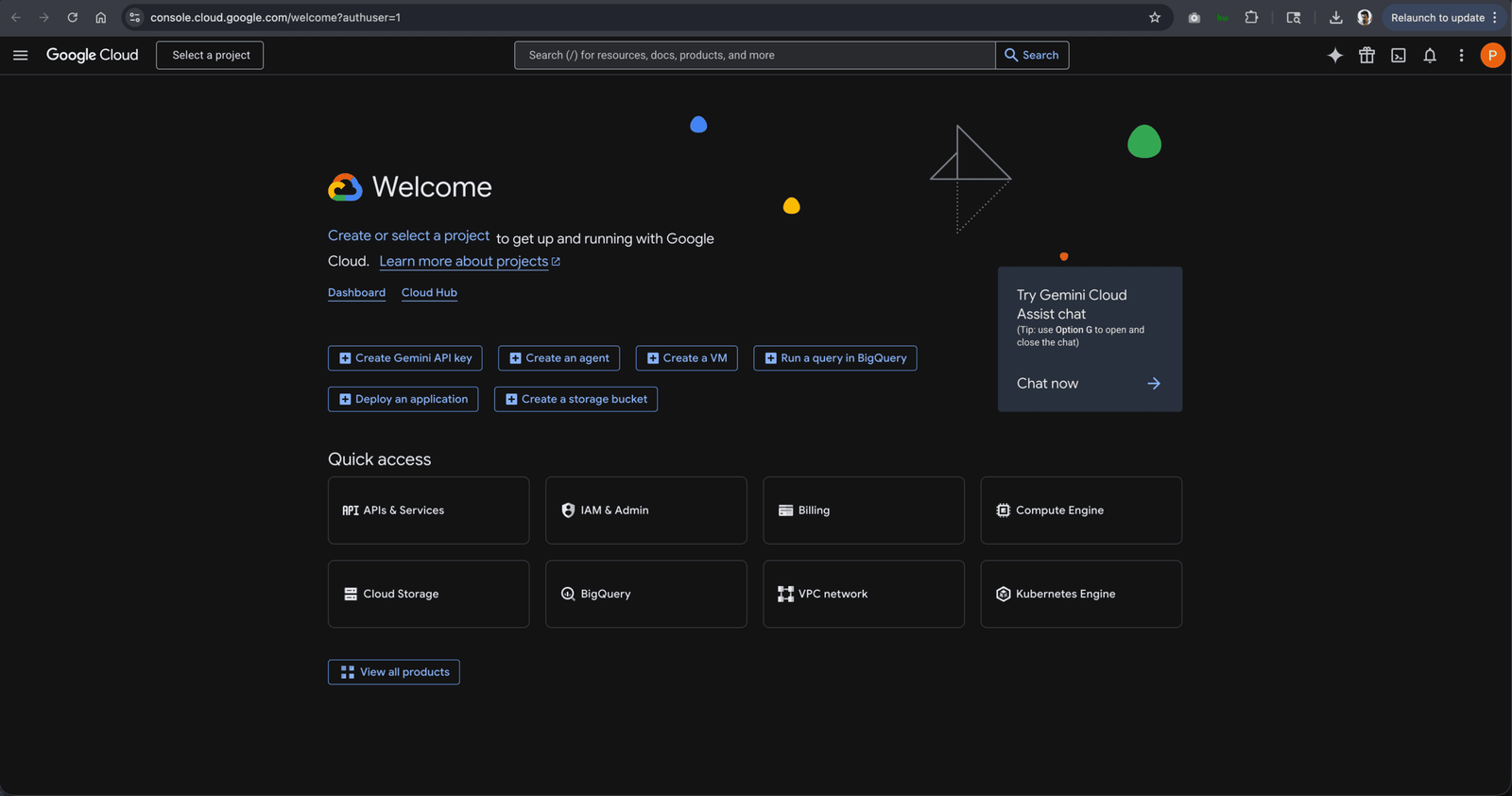
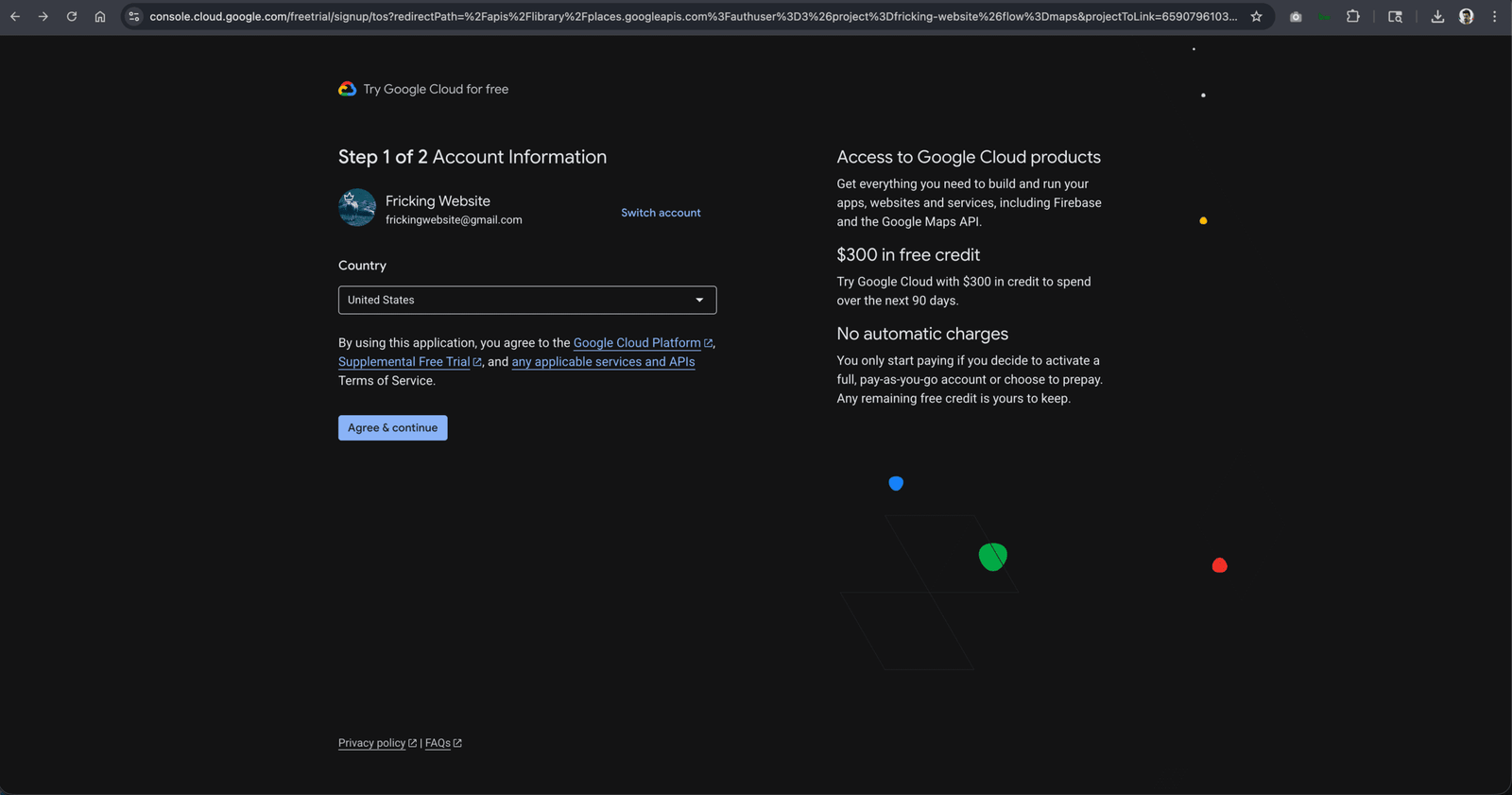
  1. Go to console.cloud.google.com. Sign in with your Google account or create one.
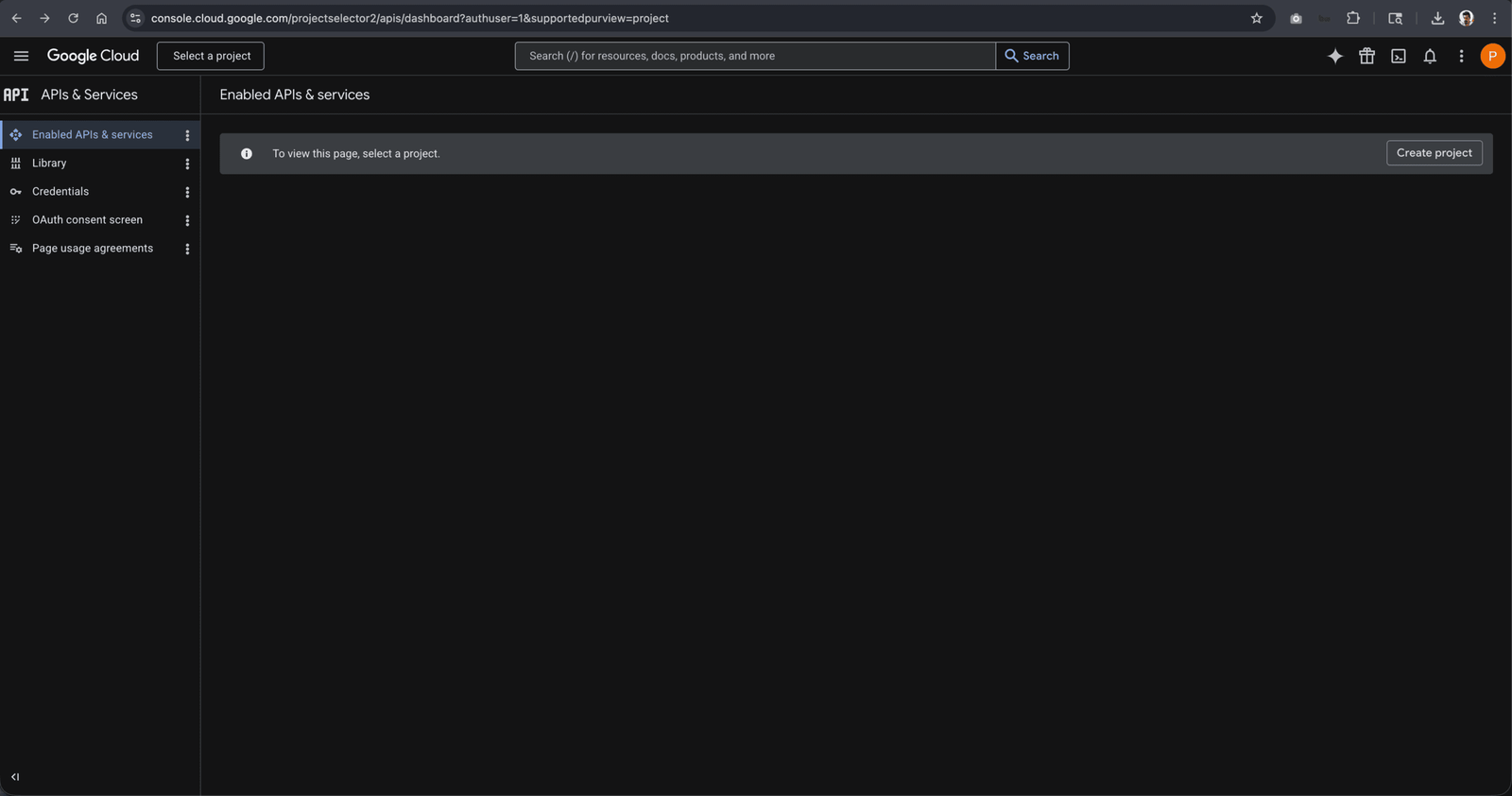
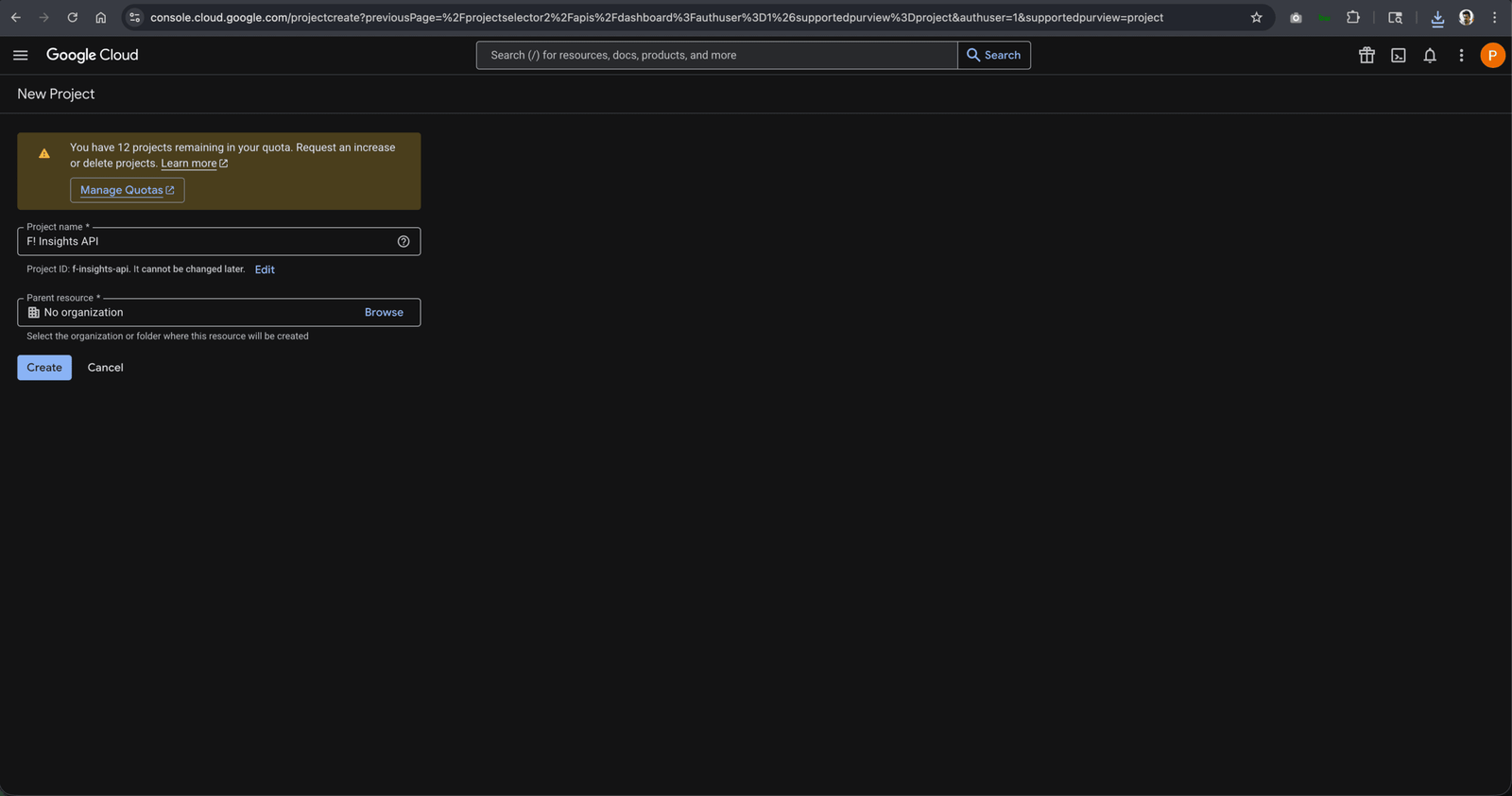
  2. Click Create Project. Name it anything: “Agency Scanner,” “Local Audit,” etc.
  3. In the left sidebar: APIs and Services, then Library.
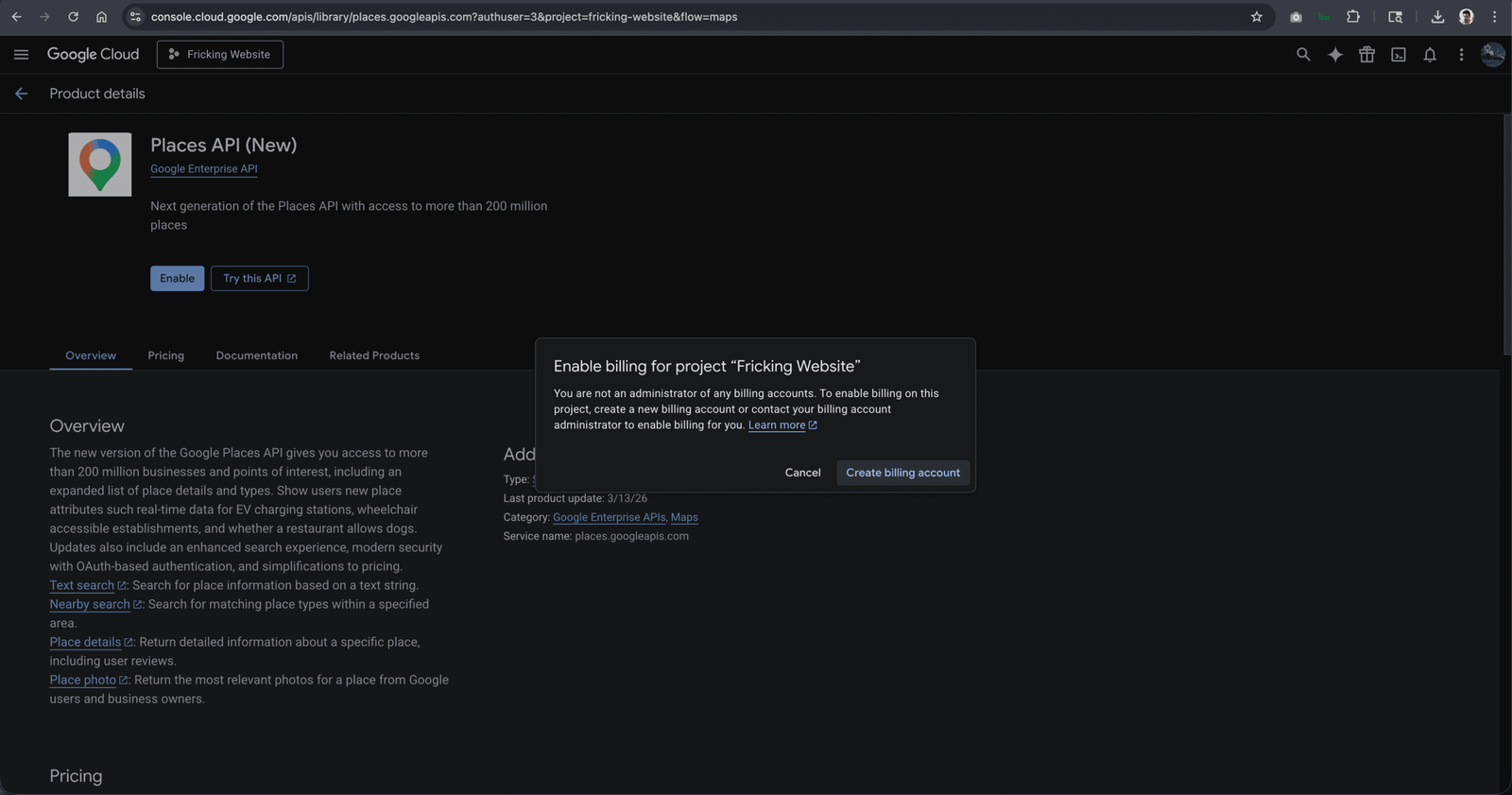
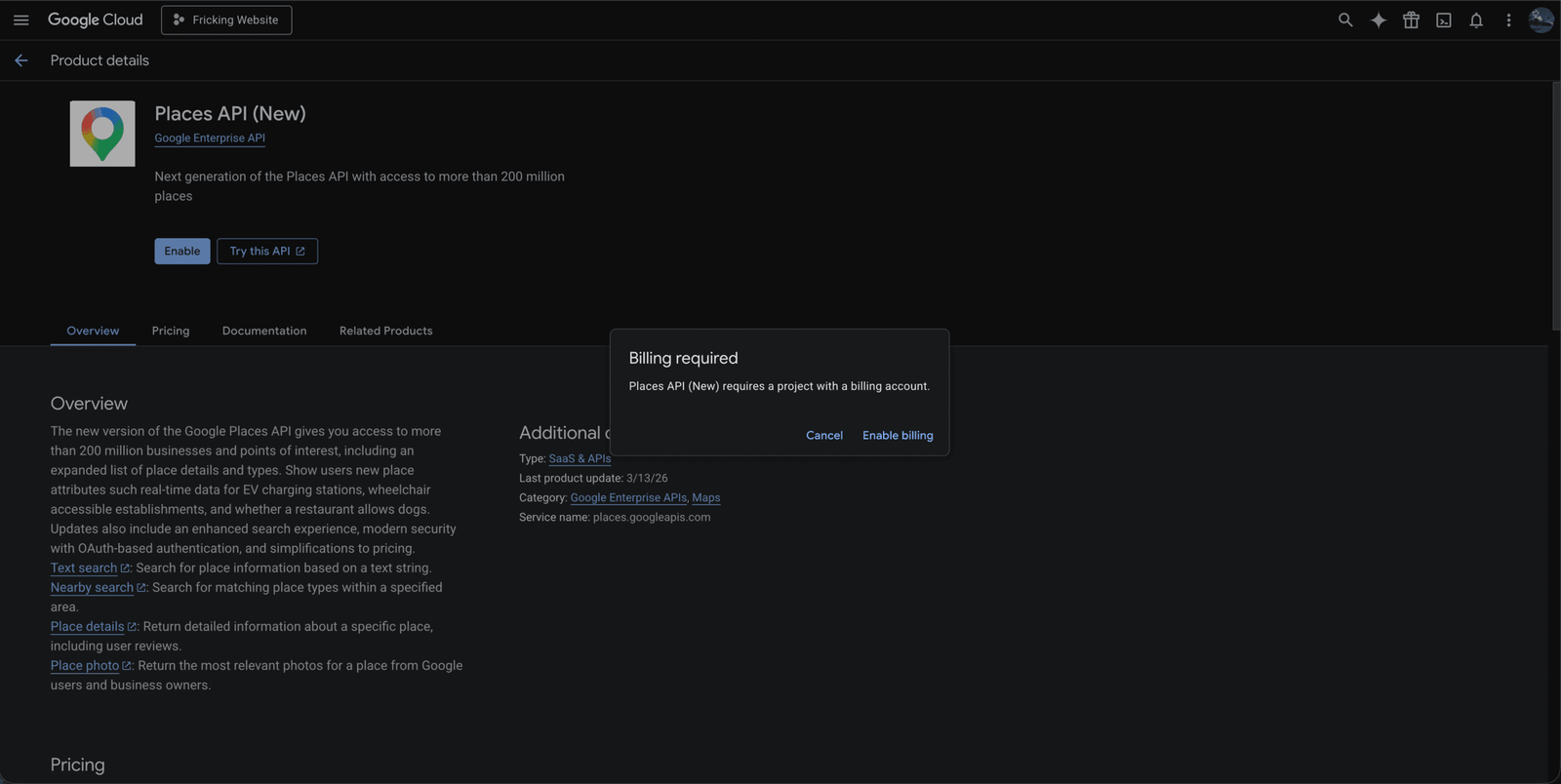
  4. Search Places API (New). Click it. Click Enable.
  5. Go back to APIs and Services, then Credentials.
  6. Click Create Credentials, select API Key.
  7. Copy the key. Store it somewhere accessible.

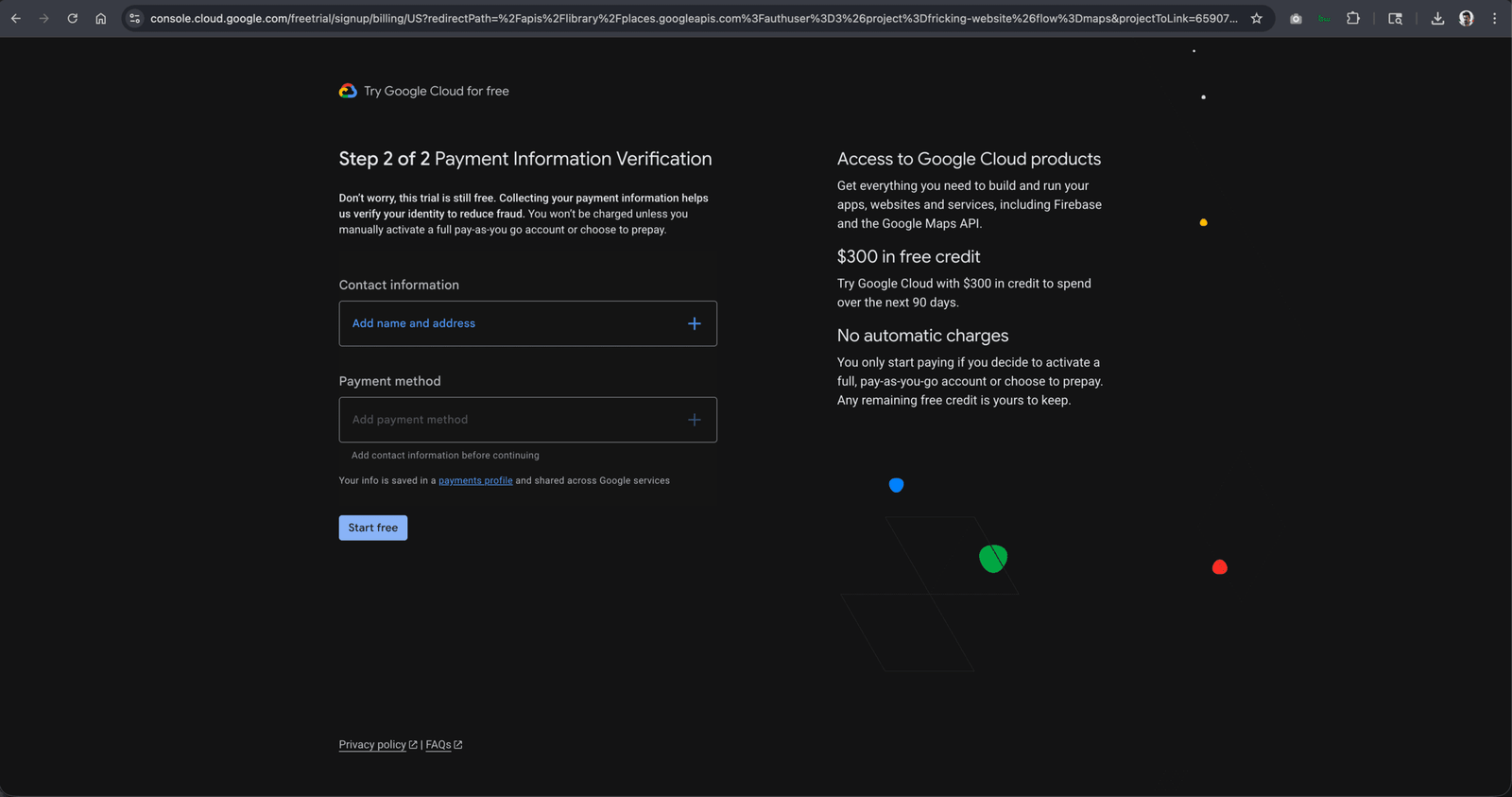
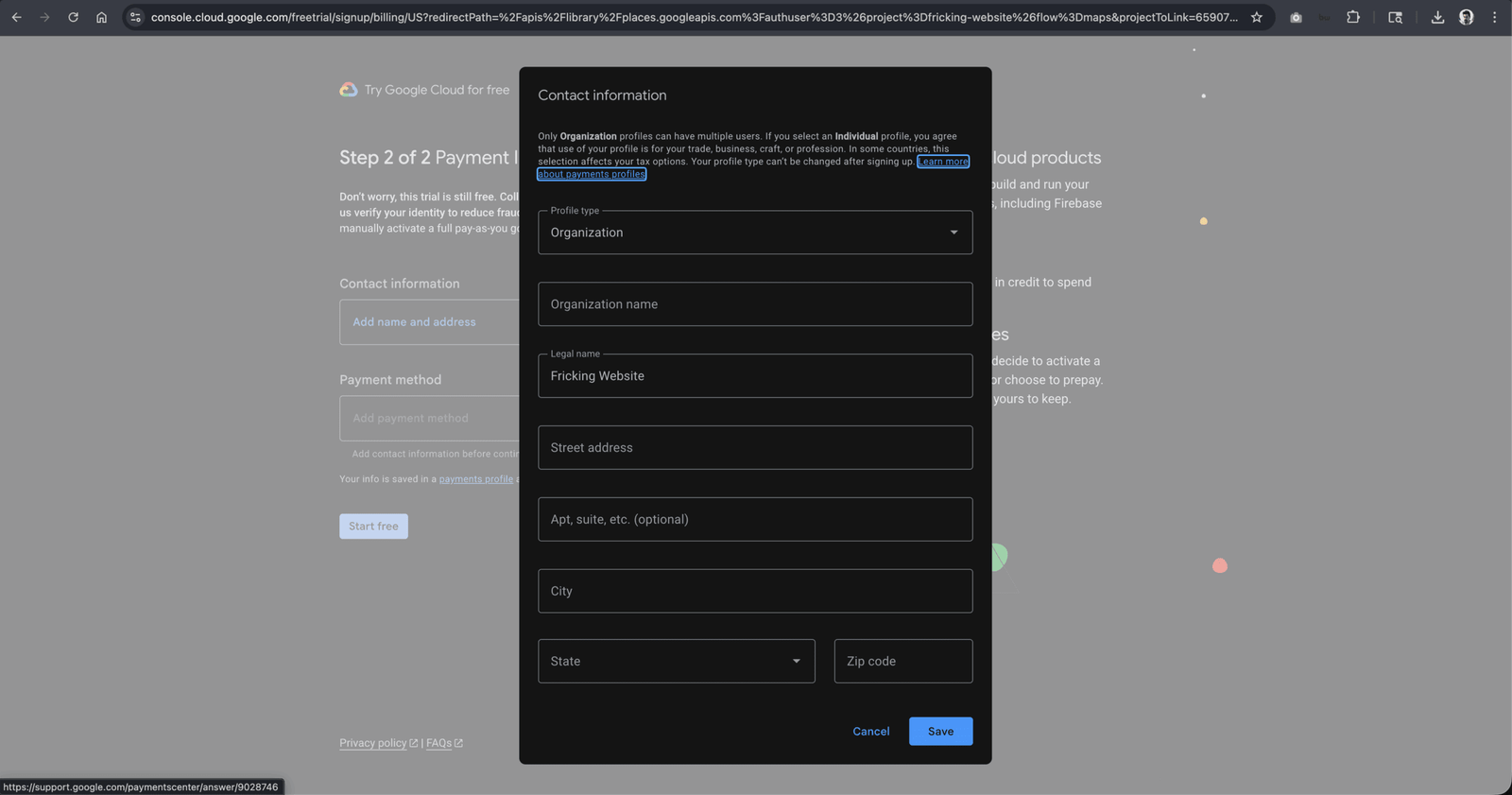
Note: New Google Cloud accounts receive $200 in free monthly credit automatically. For typical agency scanning volumes, this covers your usage entirely for the first several months.

Step 2: Get Your Anthropic API Key

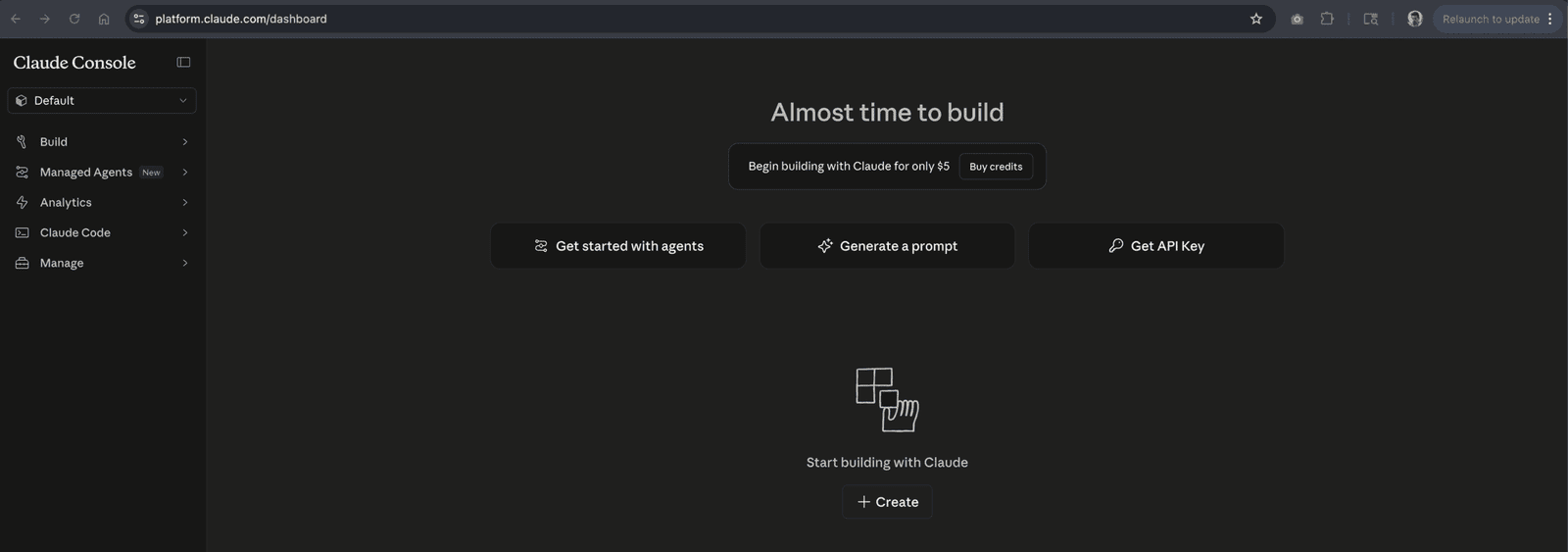
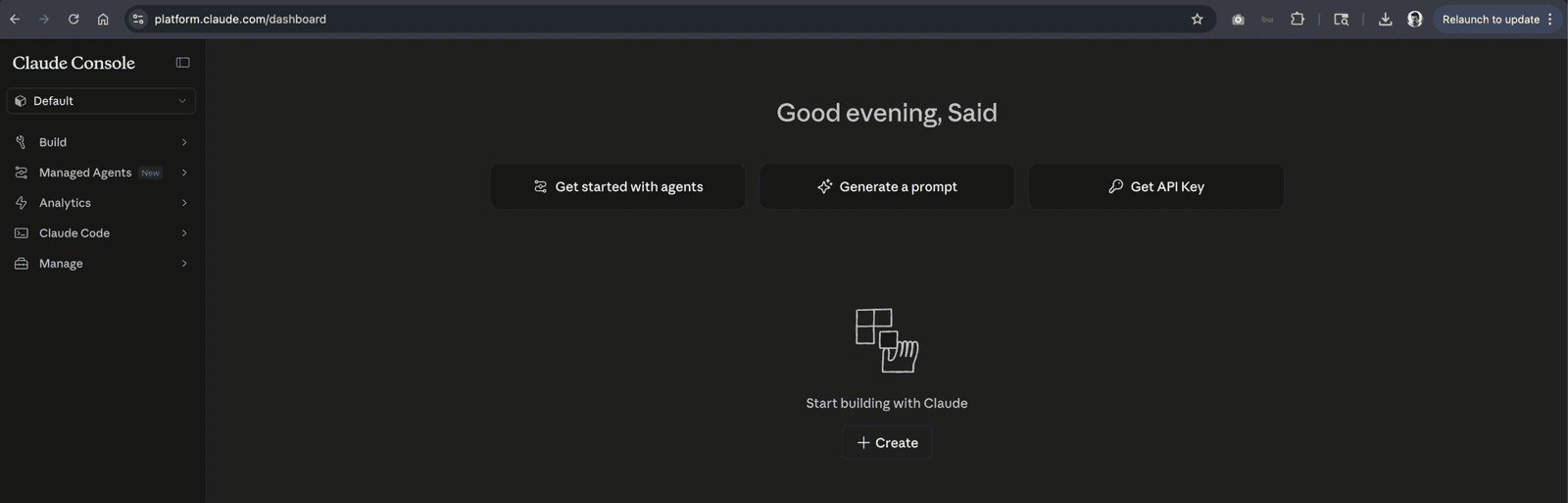
  1. Go to console.anthropic.com or platform.claude.com for returning users. Create an account or sign in.
  2. Go to Billing in the left sidebar. Add a payment method and add a small credit amount (minimum $5). Anthropic requires this before issuing API keys.
  3. Go to API Keys in the left sidebar.
  4. Click Create Key. Name it (e.g., “F! Insights”).
  5. Copy the key immediately. Anthropic shows the full key only once at creation. If you miss it, you will need to create a new one.
”Fricking

Step 3: Enter Both Keys in Plugin Settings

  1. In your WordPress admin, go to the F! Insights settings panel (it will appear in your left admin sidebar after activation).
  2. Paste your Google Places API key into the Google API field.
  3. Paste your Anthropic API key into the Anthropic API field.
  4. Select your preferred AI model. Claude Haiku is recommended for most use cases: fastest response, lowest cost per scan, output quality is excellent for the 8-category report format.
  5. Set your scan radius for competitor detection (2 to 5 miles works for most markets; increase for rural areas).
  6. Click Save. The plugin will validate both keys on save and display a confirmation if the connections are working.
[f-insights]

Step 4: Add the Shortcode to a Page

  1. Create a new WordPress page (or use an existing one).
  2. Add a clear headline: “Free Local Business Audit” or “See How Your Google Profile Compares to Your Competitors” works well.
  3. Add the plugin shortcode to the page body. The exact shortcode is shown in your plugin settings panel.
  4. Publish the page.

The scanner is now live. Any visitor can enter a business name and city and receive a full scored report within 60 to 90 seconds.

For how to set up the page for maximum conversion and which placement on your site drives the most scan traffic, see How to Add a Free SEO Audit Tool to Your WordPress Site.

Step 5: Run Your First Scan

Enter a local business you know well: a business you have been thinking about prospecting, a client’s competitor, or a business in your own neighborhood. Enter their name and city. Wait 60 to 90 seconds.

What the report should show you:

  • An overall composite score and 8-category breakdown
  • The business’s review count and star rating, compared to the nearest named competitors
  • GBP completeness gaps: specific missing fields and categories
  • Mobile PageSpeed score with a plain-language explanation
  • Prioritized recommendations based on where the gaps are largest

If the output looks accurate and the competitor comparison reflects businesses you recognize, the setup is working correctly. If something looks off (wrong location, no competitors returned, error messages), see the troubleshooting section below.

What the API Usage Costs

Usage Level Google API Cost Anthropic API Cost (Haiku) Combined Per Scan
Per scan (typical) $0.01 to $0.03 $0.01 to $0.03 $0.02 to $0.05
100 scans per month $1 to $3 $1 to $3 $2 to $6 total
500 scans per month $5 to $15 $5 to $15 $10 to $30 total

You pay Google and Anthropic directly at their published rates. There is no markup, no monthly platform fee, and no per-seat charge. You can set monthly spend limits in both the Google Cloud console and the Anthropic console to cap your costs if needed.

Quick Troubleshooting

Problem Most Likely Cause Fix
Scanner shows “API key invalid” on save Key was copied with a trailing space or was not fully copied Go back to the API console, copy the key again carefully, re-paste
Business not found for a search Business name or city does not match Google’s record exactly Try adding the street address in the search; use the business name exactly as it appears on Google Maps
No competitors returned in the report Scan radius is set too small for the area, or the category has low local density Increase the scan radius in settings; try 5 miles or more for suburban or rural markets
AI analysis section is blank Anthropic API key is invalid or account has insufficient credit Check the Anthropic console for key validity and credit balance; add credit if below $1
PageSpeed section missing from report The business does not have a website listed on their GBP This is expected; the section only populates when a website URL is present in the GBP data

If you are running into issues not covered here, the most useful diagnostic is checking your WordPress error log (via your hosting panel) and the API consoles for both Google and Anthropic, which will show exactly what request was made and what error was returned. Most setup issues are resolved within a few minutes of reading the actual error message rather than the symptom.

How to Follow Up After a Free SEO Audit Request

How to Follow Up After a Free SEO Audit Request

The Lead Came In. Now What?

The scan request is not the conversion. It’s the beginning of a short window — usually 24–72 hours — where the prospect’s interest and urgency are at their highest. Most agencies let this window close by either following up too slowly, too generically, or too aggressively.

Immediate: Deliver More Than They Expected

The first message should arrive within minutes of the scan. Not a generic “thanks for signing up” email. The actual report, delivered with a brief, specific covering note that references the most notable finding: “Your scan is ready — the most significant finding is that [Competitor Name] is outranking you with 4x your review count. The full report has the breakdown.”

This delivers immediate value and names the specific problem the prospect is now aware of. They open the report in the context of a specific gap, not as a generic audit result.

Day 1–2: The Observation Email

Not a follow-up asking if they “had a chance to review” anything. An email that adds value: “One thing worth noting from your scan — [specific observation about their situation or market] that’s relevant to what you found.” This demonstrates expertise without demanding a response. It positions you as someone thinking about their specific situation.

Day 3–4: The Single Question

“Did anything in the report surprise you?” That’s it. One sentence. An open question that invites a response without creating pressure. The replies you receive are often the most useful intelligence in the entire conversation — they tell you exactly what the prospect cares about and what they’re uncertain about.

Day 7: The Offer

“If you want to understand what fixing the [specific gap] would realistically look like, I can put together a quick plan based on your audit data. No commitment — just a specific picture of what the work involves and what a reasonable timeline looks like.”

Day 14: The Close (or Release)

“Last note — if the timing isn’t right, no problem. The audit data will still be accurate if you want to revisit it in a few months. If you do want to talk through the findings, my calendar link is below.”

Releasing pressure often prompts more responses than maintaining it.

Turn Website Traffic Into Local SEO Leads Automatically

Turn Website Traffic Into Local SEO Leads Automatically

Most agency websites have more visitors than they have leads. The gap is not a traffic problem. It is an engagement problem: visitors arrive, look at what you have built, and leave without identifying themselves because nothing on the page gives them a compelling reason to do so at the right moment.

Passive lead generation from an embedded audit tool runs on a different mechanism. The visitor does not receive a pitch. They receive a specific finding about their own business. The conversion happens because they want more information about something they just learned, not because your copy persuaded them you are worth contacting.

The Conversion Gap on Most Agency Websites

A contact form is a request that asks the visitor to take a leap of faith. They provide their information in exchange for the possibility that they will hear something useful. Most do not bother. The visitor who is genuinely interested but not yet committed will read the page, feel no particular urgency, and close the tab. They meant to follow up. Something else took over.

The contact form conversion rate on a typical agency website runs between 1% and 3% of visitors. That means 97 out of every 100 people who found your site and spent time on it leave without identifying themselves. You have no way to follow up. You have no idea what they were looking for. The traffic number goes up and the lead count stays flat.

An embedded audit tool does not replace the contact form. It gives the 97% who were not ready to fill out a form a lower-commitment way to identify themselves: run a scan on their own business and receive a specific, personal finding. The commitment is lower because they receive something first. The conversion rate on that exchange is meaningfully higher.

The Psychology of the Self-Identified Lead

When a business owner types their business name into a scanner on your site, something specific happens before they see a single result: they have committed attention. They made an active choice to engage with your tool, to enter their business, to wait for the results. That commitment is qualitatively different from passive reading.

When the results load, the psychological state is different from anything a contact form produces. The visitor is looking at data about their own business. If the competitor comparison shows a significant review gap, that finding is personal. It is not an abstract claim about what local SEO can do. It is a specific, verifiable fact about their competitive position right now.

The self-identified lead has done three things that make the follow-up conversation fundamentally easier:

  1. They recognized a problem about their own business, without you prompting them to
  2. They sought out a resource to understand it better
  3. They submitted their email because they wanted more information about something they had already confirmed was real

The prospect who arrives in your pipeline this way has already done the qualification work. Your follow-up is not an introduction to a problem they did not know about. It is a continuation of an investigation they started themselves.

The Conversion Math at Modest Traffic Levels

You do not need large traffic numbers for the audit tool to produce a meaningful pipeline. Here is what the math looks like at realistic traffic levels for a small agency blog or website:

Monthly VisitorsAudit Page Visit RateScan Completion RateEmail Submission RateMonthly Leads
30015%40%50%9
50015%40%50%15
1,00020%45%55%49
2,00020%45%55%99

These are conservative estimates based on typical engagement patterns for tools that deliver genuinely specific output. Audit page visit rate improves significantly with prominent navigation placement. Scan completion rate improves with a clear, specific headline and a distraction-free page. Email submission rate improves when the partial results visible before submission are compelling enough to make the full report feel worth the email.

At 300 monthly visitors, a well-configured audit page produces roughly 9 warm, self-qualified leads per month with zero outbound effort on those specific leads. At 1,000 visitors, that becomes nearly 50. These are not cold leads. They are prospects who ran a scan on their own business and decided the findings were worth an email address.

How the Conversion Loop Works

The loop has five steps, all of which run without your active involvement after the initial setup:

  1. Visitor arrives at your site through search, referral, social, or direct traffic and finds the audit page through your navigation or a contextual link from a blog post
  2. Visitor runs the scan by entering their business name and city; the scanner pulls live GBP data and runs a full competitive analysis in 60 to 90 seconds
  3. Visitor sees the results including the competitor comparison, the review gap, the PageSpeed score, and the specific GBP gaps flagged in the report; this is the peak engagement moment
  4. Visitor submits their email to receive the full report; the lead record is created in your WordPress pipeline with the full audit data attached
  5. You receive the lead notification with the business name, the email, and the complete audit findings; you follow up with a message that references the specific data they already saw

Steps 1 through 4 run automatically 24 hours a day. The only step that requires your time is step 5, and the data from step 4 makes that step faster and more effective than any cold outreach.

The Follow-Up That Converts This Traffic

The audit creates the engagement. The follow-up converts it. The critical principle: every message in the follow-up sequence references the specific data from the scan. Not generic claims about what local SEO can do. The actual competitor name. The actual review gap. The actual PageSpeed score.

Email 1 (within 24 hours of submission): Deliver the full report with one sentence that references the most striking finding. “Your scan flagged a 140-review gap between you and Apex Plumbing, which is likely the primary reason they are showing up above you for most local searches in your area.” No pitch. One observation. One question: “Is this the gap you have been noticing?”

Email 2 (day 3 to 5): A second data point from the same audit. If Email 1 addressed the review gap, Email 2 addresses the PageSpeed score or the GBP completeness gaps. Same problem, different angle.

Email 3 (day 7 to 10): A direct question: “Is this something you are actively working on, or is the timing not right?” Real answers come back from this question. Stop after three touches.

How the System Compounds Over Time

The audit tool produces two kinds of value simultaneously. The immediate value is leads: specific, warm, self-qualified prospects with documented problem profiles. The compounding value is market intelligence: a growing dataset of local business scans in your target categories and geography.

After 50 scans in a single vertical, patterns emerge that are not visible in any individual audit. After 200, those patterns become publishable findings. After 500, you have a proprietary dataset that no competitor has, because no competitor is running this volume of structured scans in your specific market.

That dataset becomes the foundation for local market reports, more accurate competitive proposals, more specific prospect conversations, and content that ranks for the searches your target clients are making. The lead generation is the immediate return. The compounding market intelligence is what changes your agency’s competitive position over 12 to 24 months.

Which Traffic Sources Produce the Best Scan Leads

Traffic SourceLead QualityWhy
Organic search for GBP and local SEO queriesHighestVisitor arrived specifically seeking information about local search; highest intent alignment with the audit tool
Referral from a trusted local business contactHighBorrowed trust accelerates the scan completion and submission rate
Cold email using audit page as the CTAHighProspect self-selects by clicking; completion signals genuine interest
LinkedIn posts targeting local business ownersModerate to highDepends on content relevance and audience targeting
Paid traffic to the audit pageModerateWorks at scale with the right targeting; requires testing to optimize CPC against lead quality
General blog traffic not about local SEOLowerVisitors arrived for different information; lower intent alignment

The highest-quality leads consistently come from visitors who arrived because they were searching for information about their own local search performance. That intent alignment means they are already in the mindset of investigating a problem when they find the audit tool. The scan completion rate for this traffic is meaningfully higher than for general referral or social traffic, and the email submission rate reflects the same pattern.

Building content that ranks for searches like “why is my business not on Google Maps,” “how to check my Google Business Profile score,” and “how to get more Google reviews” creates a sustainable, compounding source of high-intent traffic to the audit page. Each ranking post delivers ongoing passive audit traffic indefinitely after the initial content investment.